How to Take Live Photos on Android: The Ultimate Step-by-Step Guide [2026]
Ever watched an iPhone user show off a Live Photo — a picture that magically comes to life when you press it — and wondered how to do the same on your Android phone? You're not alone. Live photos on Android (also known as motion photos) are one of the most underrated camera features available today, and the good news is that every modern Android device can capture them.
In this comprehensive guide, you'll learn exactly how to take live photos on Android — both with your phone's built-in camera and with a powerful free app that adds filters, stickers, text, and more.
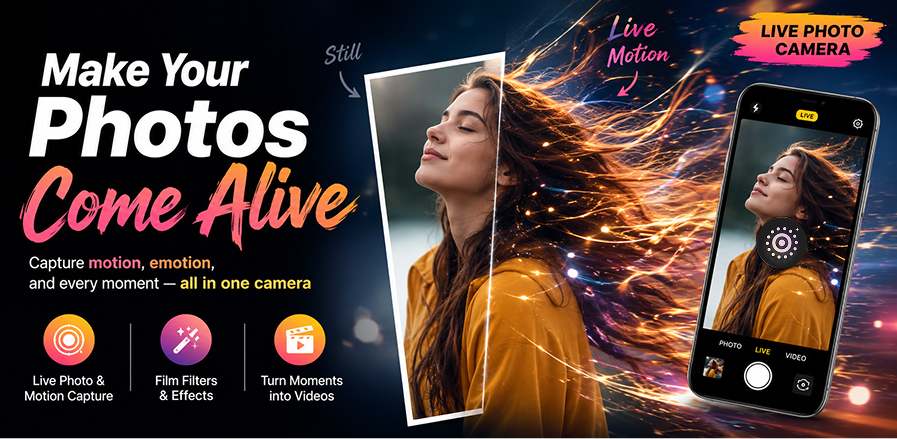
📸 What Are Live Photos (Motion Photos)?
A live photo captures a short video clip (typically 1–3 seconds) alongside your still image. The result is a moving picture that preserves the motion, sound, and emotion of the moment — perfect for candid shots, pet photography, travel memories, and more.
On Android, this feature is officially called Motion Photo. Apple calls it Live Photo. Both work similarly, but Android's version can be supercharged with the right app.
📱 Method 1: Use Your Phone's Built-in Motion Photo
Most Samsung Galaxy, Google Pixel, and other Android phones have a built-in Motion Photo feature in the default camera app.
- Open your Camera app and switch to Photo mode.
- Look for the Motion Photo icon — it usually looks like a square with a small play triangle.
- Tap to enable it (the icon turns solid or changes color).
- Hold your phone steady and tap the shutter button.
- Done! Open the photo in your Gallery and look for the Play button.
Limitation: Built-in motion photos are basic — no filters, no stickers, no text, and limited editing options. That's where a dedicated app comes in.
🚀 Method 2: Use Live Photo Camera App (Recommended)
For a truly creative live photo experience, download Live Photo Camera — a free app with 100+ trendy filters, fun stickers, custom text overlays, and professional editing tools.
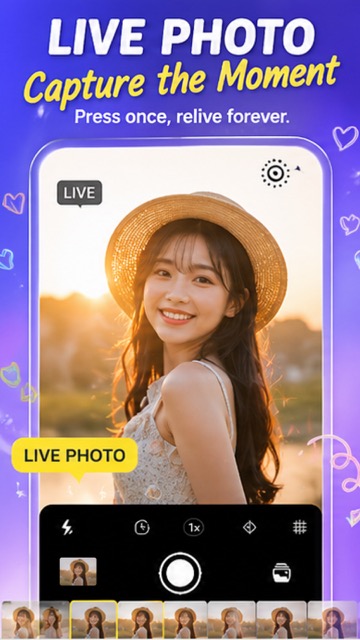
Step-by-Step:
- Download Live Photo Camera from Google Play.
- Open the app and switch to LIVE mode.
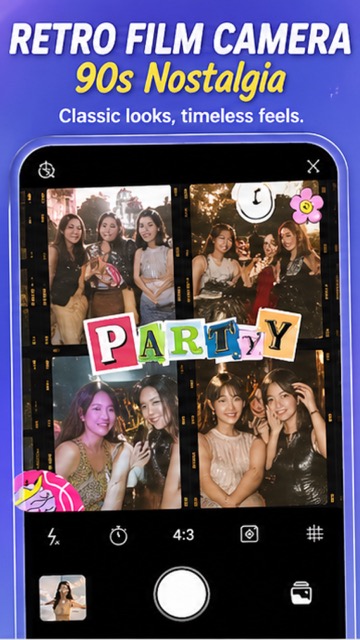
- Choose a filter — pick from Film, Retro, Light, Vibe, Cream, Sunset, Tokyo, Miami, and more.
- Tap the shutter to capture your live photo.
- Edit — add stickers, text, or drawings to personalize your creation.
- Save or Share directly to Instagram, TikTok, or WhatsApp.
👀 How to View and Play Your Live Photos
- Google Photos: Open the photo, look for the "Motion" badge, and tap to play.
- Samsung Gallery: Open the photo and tap the motion icon at the top.
- Live Photo Camera: Built-in viewer with playback controls and frame selection.
💡 Pro Tips for Better Live Photos
- ✅ Hold steady — keep your phone stable for 1–2 seconds before and after the shot.
- ✅ Capture motion — live photos shine when there's movement (hair blowing, waves crashing, pets playing).
- ✅ Use filters — the right filter can transform a simple live photo into viral content.
- ✅ Good lighting — natural light produces the best live photo results.
- ✅ Export as video — for sharing on social media, export as MP4 for maximum compatibility.
❓ FAQ
Can all Android phones take live photos?
Most modern Android phones (2019+) support motion photos natively. For older devices, you can use the Live Photo Camera app which works on Android 7.0+.
Are live photos bigger than regular photos?
Yes, slightly. A live photo includes both the still image and a short video clip, so file sizes are typically 2–5x larger than a standard photo.
Can I share live photos on Instagram?
Yes! Export the live photo as a short video or GIF, then upload it to Instagram Reels or Stories.
#LivePhoto #MotionPhoto #AndroidPhotography #LivePhotoCamera #AndroidCamera #PhonePhotography #MotionCapture #2026
Try It Yourself
Download our app and experience these features firsthand.