Back to Blog
 Download App
Photography
April 26, 2026
7 min read
Samsung Galaxy Motion Photo: Tips, Tricks & the Best Companion App [2026]
Samsung Galaxy phones have one of the best built-in Motion Photo implementations on Android. But most users barely scratch the surface of what's possible. In this guide, you'll learn Samsung-specific tips plus discover a companion app that takes your motion photos to the next level.
📱 How to Enable Motion Photo on Samsung Galaxy
- Open the Camera app
- Make sure you are in Photo mode
- Look at the top toolbar for the Motion Photo icon (a square with a play button)
- Tap it to toggle ON — the icon becomes highlighted
- Take your photo normally — motion is captured automatically
🔍 Hidden Samsung Motion Photo Features
- 📌 Best Frame Selection — tap "View motion photo" in Gallery, then scrub through frames to find the best moment and save it as a new still image
- 🎬 Export as GIF — in Samsung Gallery, tap the 3-dot menu and select "Export as GIF"
- 📹 Export as Video — save the motion clip as a standard MP4 video file
- 🔄 Auto Motion Photo — in Camera Settings, you can set motion photo to "Always On" so you never miss a moment
⚠️ Limitations of Samsung's Built-in Feature
- ❌ No creative filters during capture
- ❌ No sticker or text overlays
- ❌ Basic editing only — trim and select frame
- ❌ Cannot add effects after capture
- ❌ Sharing loses motion on most platforms
🚀 Level Up with Live Photo Camera App
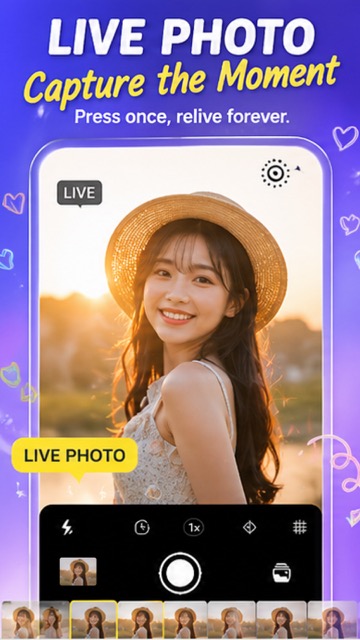
Live Photo Camera is the perfect companion for Samsung Galaxy users who want more from their motion photos:
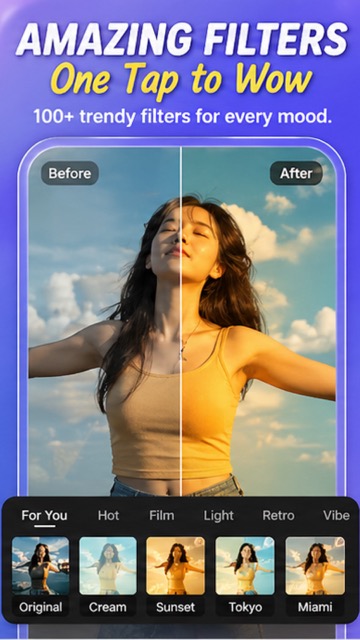
- 🎨 100+ filters that Samsung Camera does not offer
- ✨ Stickers, text, and drawings for creative expression
- 📤 Easy export to GIF and MP4 for social media sharing
- 🎬 Seamless PHOTO/LIVE/VIDEO mode switching
#Samsung #GalaxyTips #MotionPhoto #SamsungCamera #OneUI #LivePhotoCamera #AndroidPhotography #2026
Try It Yourself
Download our app and experience these features firsthand.